# Deploy the dashboard on Vercel
> Deploy the dashboard from the Coop release with its Clerk and API values.
Open the Vercel CLI guide ↗
This path uploads the dashboard from the extracted Coop release folder. It does not require a GitHub repository.
## Values to enter
| Variable | Value |
| --- | --- |
| `VITE_CLERK_PUBLISHABLE_KEY` | Clerk's production publishable key |
| `VITE_API_BASE_URL` | The public HTTPS API origin, with no path or trailing slash |
Both values are embedded in browser JavaScript. Never put a database URL, encryption key, S3 credential, Clerk secret key, or Redis URL in a `VITE_` variable.
## Link a Vercel project
From the extracted Coop release folder:
```sh
cd apps/dashboard
npm ci
npx vercel@latest login
npx vercel@latest link
```
Choose your company team, create a project named `coop-dashboard`, and accept the detected Vite settings.
Add both build values to the production environment:
```sh
npx vercel@latest env add VITE_CLERK_PUBLISHABLE_KEY production
npx vercel@latest env add VITE_API_BASE_URL production
```
The CLI prompts for each value without putting it in shell history. Then deploy the dashboard:
```sh
npx vercel@latest --prod
```
## Verify the project settings
The Vercel dashboard project should use:
```text
Framework preset: Vite
Build command: npm run build
Output directory: dist
```
The included `vercel.json` returns `index.html` with status 200 for application routes. After deployment, directly open both of these URLs:
```text
https:///settings
https:///o//messages/
```
For the conversation URL, sign in, open a real conversation, and copy its URL from the address bar. Both URLs should load the app rather than a host 404 page. Authentication may redirect to sign-in first.
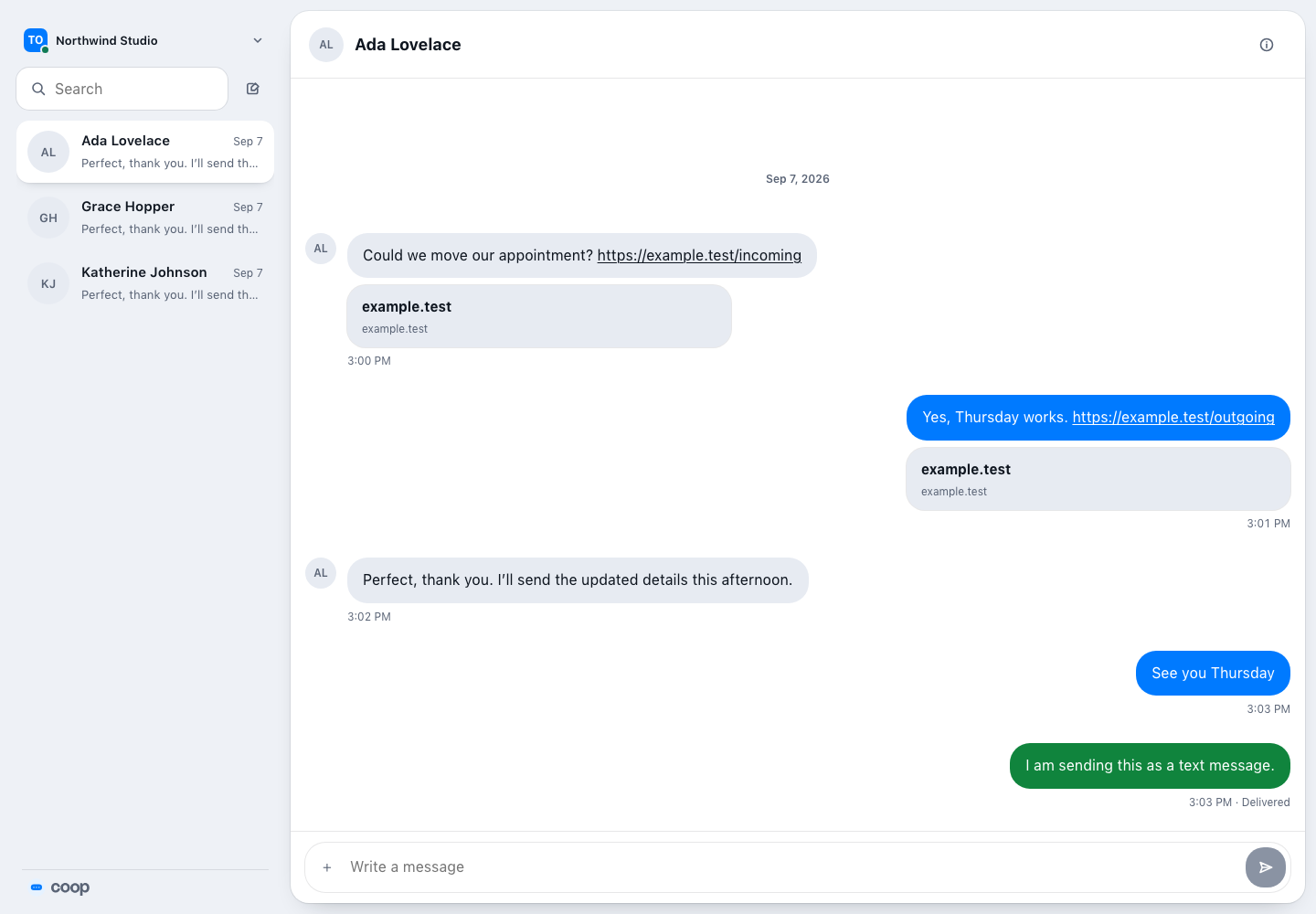
A working deployment loads the full inbox after sign-in. The workspace, conversations, and message panel should appear without a host error.
## Connect the domain back to the API
Copy the exact Vercel production origin. Add it to `CLERK_ALLOWED_DASHBOARD_ORIGINS` on the API, with no trailing slash. Redeploy the API. Also add the production domain to Clerk if you use a custom domain.
Official reference: [Vercel CLI](https://vercel.com/docs/cli).